Add a Rejection Reason
Applies to: Administrators, Compliance Officers, Customer Support Managers
Maintaining a list of clear, consistent rejection reasons is crucial for efficient operations and clear communication with customers.
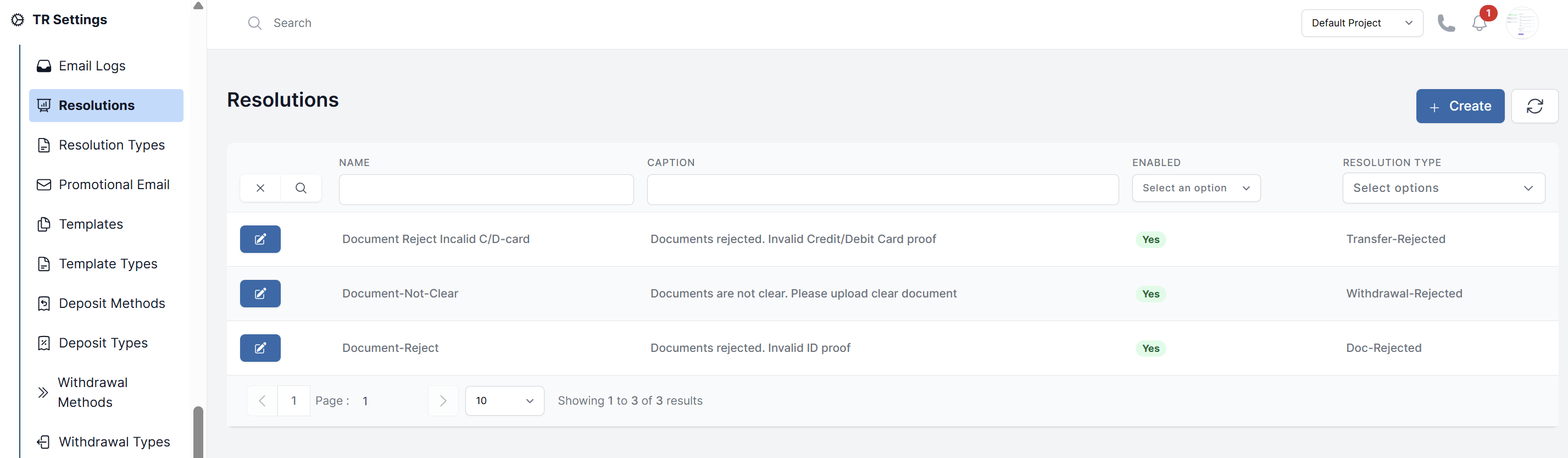
Create a New Rejection Reason
- Navigate to TR Settings > Resolutions.
- Click the Create button.
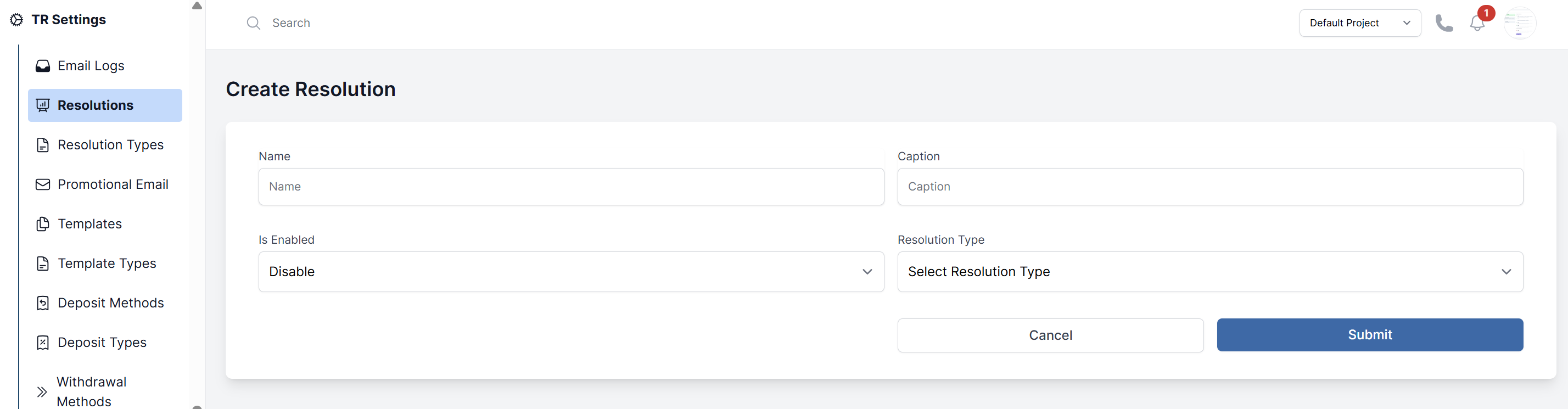
- Fill in the form:
- Name: The internal name for this reason (e.g., "Document Unclear").
- Caption: A longer internal description for team members.
- Resolution Type: This is a critical step. Link this reason to a specific Type of request (e.g., "KYC Document Rejection", "Withdrawal Rejection"). Types are managed in Resolution Types.
- Use the Enable dropdown to activate or deactivate the resolution.
- Click Submit.
Using Rejection Reasons
When you reject a request (e.g., a withdrawal in Finance > Withdrawals or a document in Verification > Documents), a pop-up will ask you to choose a reason from the list you've created here.
Best Practices
- Be Specific: Create reasons for common scenarios (e.g., "Name Mismatch", "Invalid Proof of Address", "Insufficient Funds").
- Be Professional: Ensure the "Message to Customer" is clear, polite, and instructs the customer on how to rectify the issue.
- Review Regularly: Periodically review your reasons to ensure they are still relevant and effective.