Upload Assets (Images & Icons)
Applies to: Administrators, Marketing Managers
The Asset Uploader is the central repository for all images and icons used to brand the client portal and admin area.
Accepted File Types
- Images:
.jpg,.jpeg,.png,.gif,.svg - Icons:
.svgformat is highly recommended for scalability.
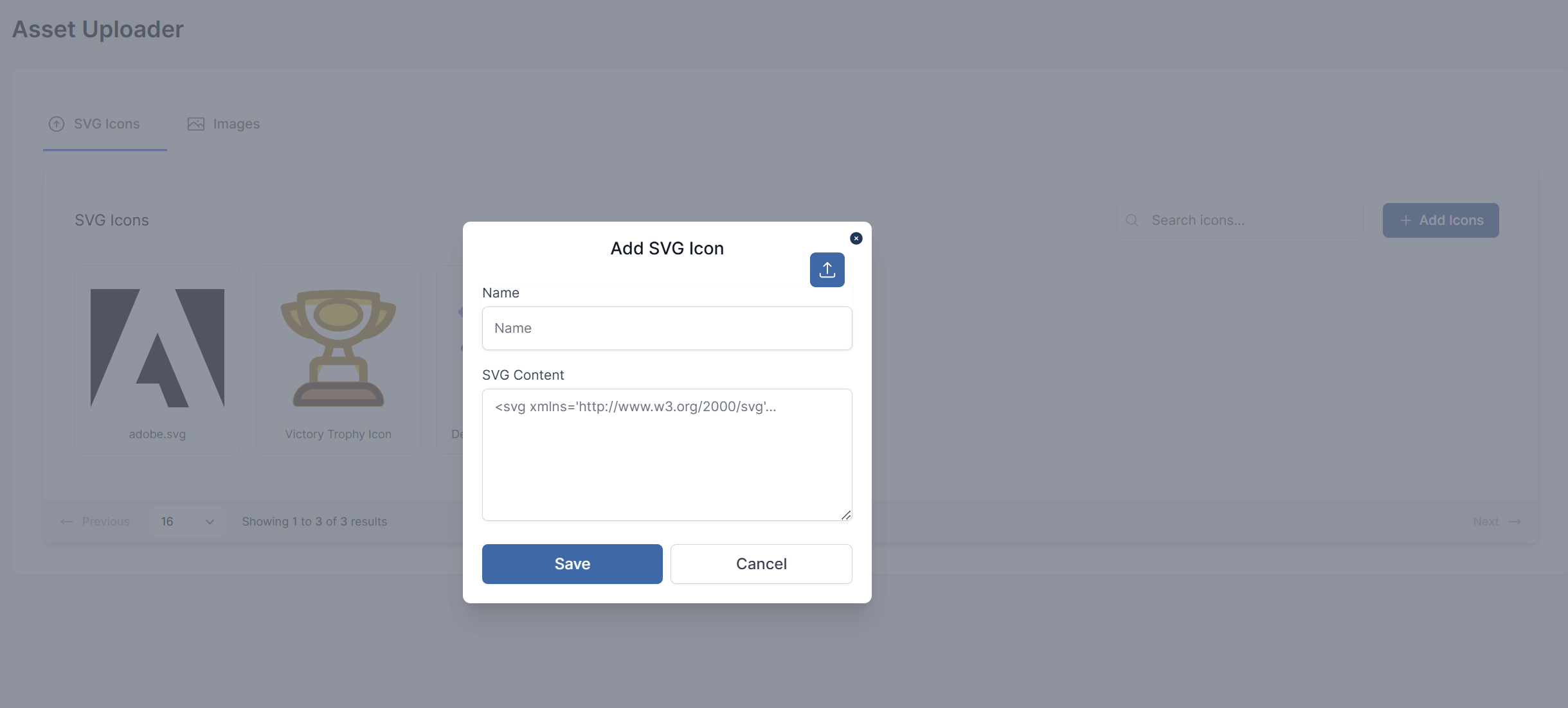
Steps to Upload a SVG Icons
- Navigate to Product Settings > Asset Uploader.
- Click the Add Icons button.
- Add an optional Name for easier finding later, especially useful for SEO on static pages.
- Enter the SVG Content
- Click Save.
- Once Saved, the icon will appear in SVG Icons.
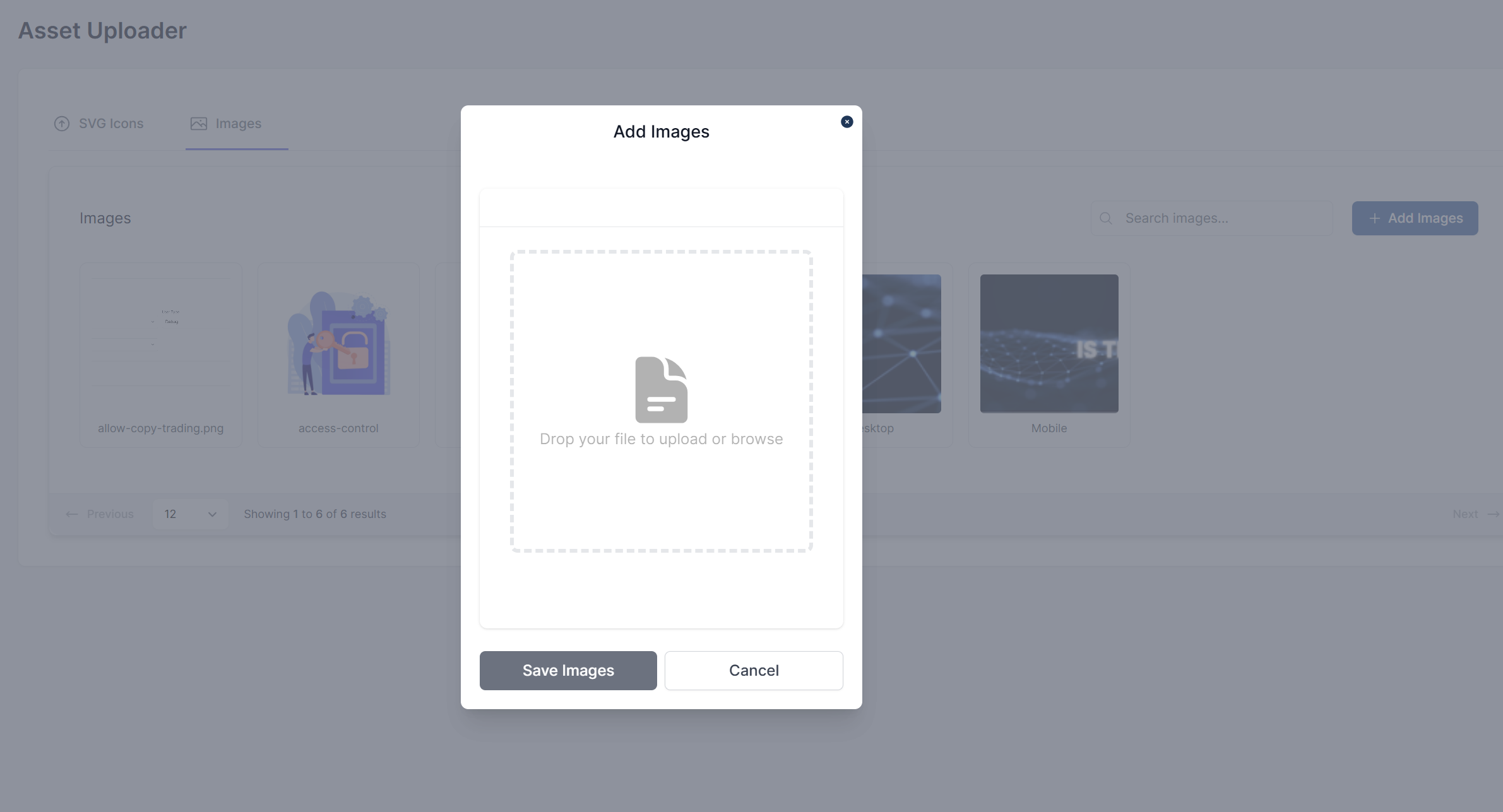
Steps to Upload an Image
- Navigate to Product Settings > Asset Uploader.
- Click the Add Images button.
- Drop file to upload or browse.
- Click Save Images.
- Once Saved, the image will appear in Images.
Using Uploaded Assets
- Sidebar Icons: When in Sidebar Configs, you can select an uploaded SVG icon for a menu item.
- Static Pages: When in Static Page Config, you can use an uploaded image as a hero banner or within HTML content.
- Company Logo: The logo set in Company Info is typically uploaded here first.
Best Practices
- Naming: Use clear, descriptive filenames (e.g.,
company-logo-primary.svg,homepage-hero-banner.jpg). - Optimization: Compress images before uploading to ensure fast loading times for your clients.
- Organization: Use descriptions and tags (if available) to keep your asset library organized.