Manage Banners & Notifications
Applies to: Administrators, Marketing Managers
Banners are used to display important announcements, promotions, or system notifications to users within the Client Portal.
View and Edit Existing Banners
- Navigate to Product Settings > Banners.
- You will see a list of all active and inactive banners.
- To edit one, click on it, You can update its Name, Priority, and other fields.

Creating a New Banner
- Click the Create Banner button.
- Fill in the form:
- Name: A short, attention-grabbing headline.
- Priority: A numerical value that determines the display order of banners.
- Enable: A toggle switch to turn the banner on (Yes) or off (No). Select "Yes" to show the banner to users.
- Image: Upload images (Desktop view, Mobile view) to make the banner more visually appealing.
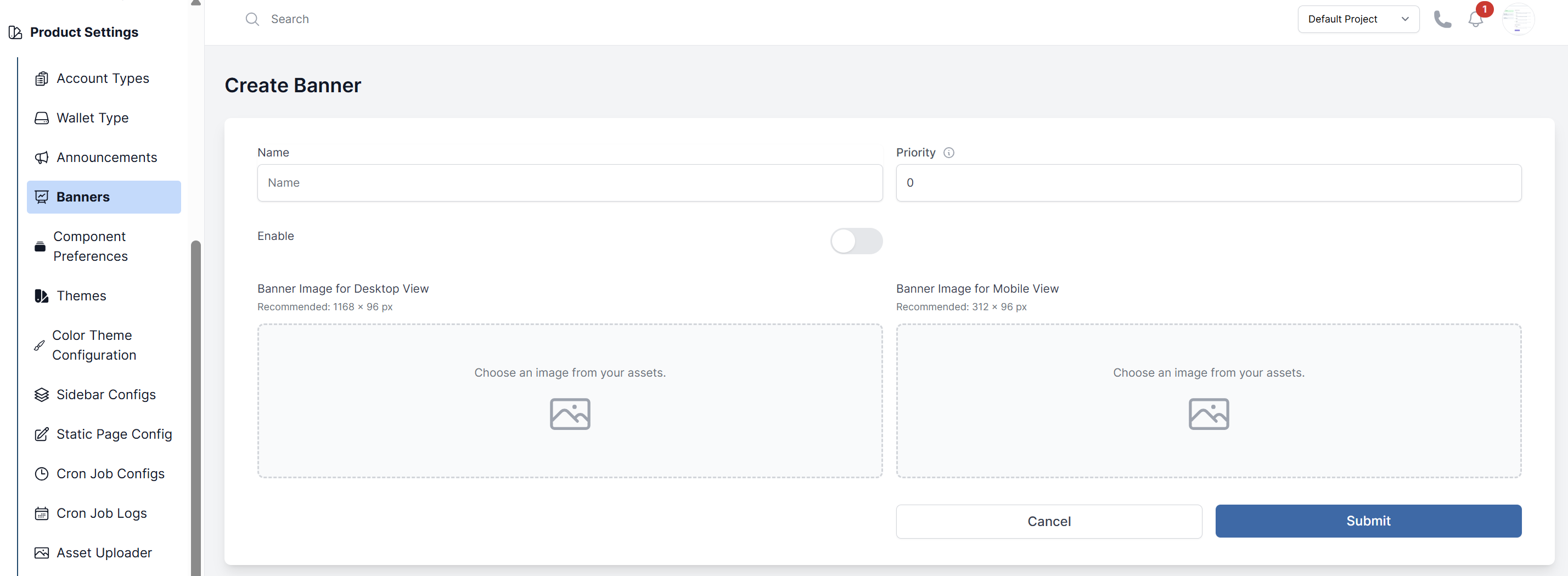
- Click Submit.
Best Practices
- Be Concise: Keep the message clear and short.
- Use Scheduling: Use the start/end dates to run time-sensitive promotions.
- Don't Overwhelm: Avoid having too many active banners at once.